Screen Translator for Linux (Rouge)
Press a shortcut, drag a box over any text on screen, and read a translation in a popup at the spot you selected. Built for the COSMIC desktop on Wayland; works across multiple monitors.
Claude reads the text and translates it in one step, so it handles any source language and messy real-world screenshots without OCR language packs.
Please test before relying on it
This is shared as-is, with no warranty. It works on my own computers, but your system, settings and software versions may differ, so please try it in a safe setting first. If something doesn't work, you can ask Claude (or another AI coding assistant) to look into it, and I'd appreciate hearing what you found and how you fixed it. You are also welcome to just let me know at support@veered.org, and I'll look into it.
How you use it
- Press Super+Shift+T. All monitors dim and the cursor becomes a crosshair.
- Drag a rectangle over the text. Esc cancels.
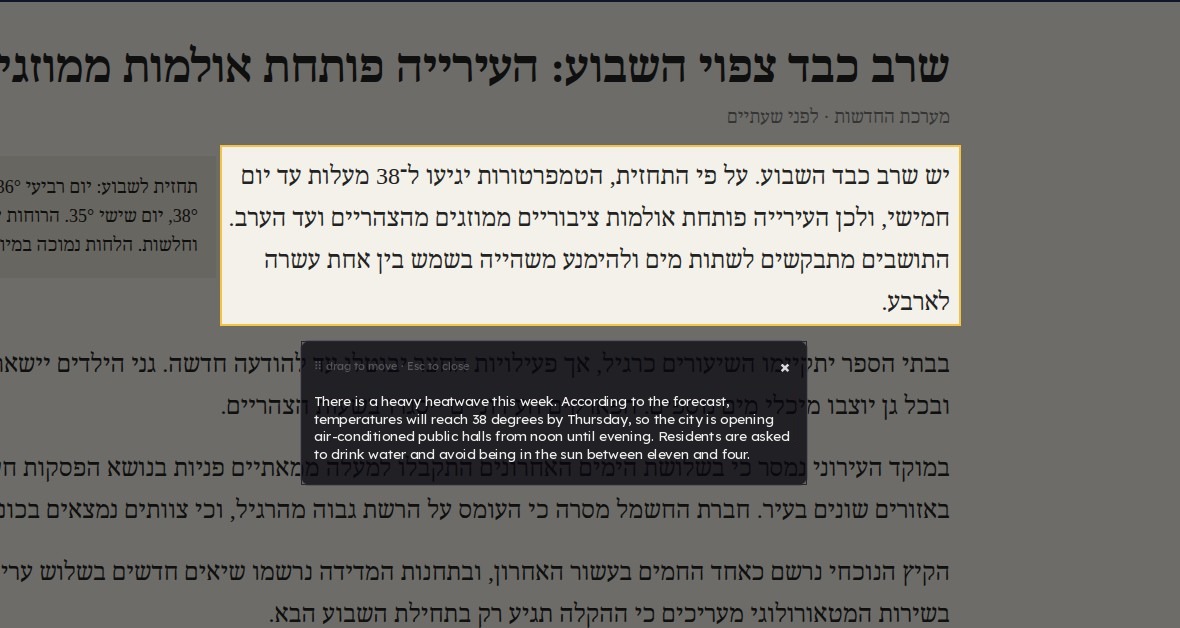
- The translation appears where you selected. It is selectable and also copied to the clipboard. Drag the header to move the popup; x or Esc closes it.
cosmic-translate-shot --file picture.png translates an image file and prints the result, which is handy for testing your setup.
Information for nerds: requirements, install and uninstall
- COSMIC on Wayland — the desktop has to let a program take a picture of the screen, which COSMIC does.
- A few Python packages, installed in one line:
sudo apt install python3-gi gir1.2-gtk-3.0 gir1.2-gtklayershell-0.1 python3-pil - One translation engine:
- An Anthropic API key (recommended, about 1 to 3 seconds per translation). Create one at https://console.anthropic.com and put it in the config file. Usage is billed to your API account.
- Claude Code, if you already use it: when no key is set, the tool runs
claude -pwith your own login. Slower (several seconds per call).
Install
./install.sh                       # creates the Super+Shift+T shortcut
./install.sh --key Super+Alt+t     # a different shortcut
./install.sh --lang Spanish        # translate into Spanish
./install.sh --no-shortcut         # create the shortcut yourself in Settings
This installs ~/.local/bin/cosmic-translate-shot, creates ~/.config/cosmic-tools/translate-shot.conf with mode 600, and adds a COSMIC custom shortcut after backing up the shortcuts file to ~/.config/cosmic-tools/backups/. Nothing needs sudo.
Then add your key:
$EDITOR ~/.config/cosmic-tools/translate-shot.conf   # ANTHROPIC_API_KEY=...
cosmic-translate-shot --check                        # shows the engine in use
Information for nerds: settings
Settings live in ~/.config/cosmic-tools/translate-shot.conf (see [translate-shot.conf.example](translate-shot.conf.example)). Environment variables with the same names take precedence.
| Setting | Default | Meaning |
|---|---|---|
ANTHROPIC_API_KEY | empty | API key. Keep the file at mode 600; the tool warns if it is readable by others. |
TRANSLATE_SHOT_ENGINE | auto | auto (key if set, else Claude Code), api, or cli |
TRANSLATE_SHOT_MODEL | claude-sonnet-5 | Model id. Sonnet reads dense or small text accurately; claude-haiku-4-5 is faster and cheaper but makes more mistakes on dense text. |
TRANSLATE_SHOT_LANG | English | Target language, in plain words |
TRANSLATE_SHOT_TIMEOUT | 120 | Seconds before giving up |
TRANSLATE_SHOT_CLAUDE | auto | Path to the claude CLI |
Privacy: the selected region of your screen is sent to Anthropic for translation. Do not capture anything you would not paste into Claude.
Uninstall
./uninstall.sh           # keeps your config file
./uninstall.sh --purge   # also deletes it
Information for nerds
COSMIC has no grim-compatible screenshot protocol, and its portal refuses silent captures, so the script speaks ext_image_copy_capture_v1 directly over the Wayland socket in pure Python with shared-memory buffers. The selection overlay is one gtk-layer-shell surface per monitor, which is also what lets the popup sit at exact screen coordinates. Dragging a layer surface by changing its own margins feeds back on itself, so during a drag the surface temporarily covers the monitor (transparently) and the visible frame moves inside it.
Crops smaller than 1000 px are upscaled 2x before sending, which noticeably improves reading of small UI text.
Tests
python3 -m unittest discover -s tests -vThe tests use a local mock HTTP server in place of the API and a throwaway HOME for the installer. They make no network calls, capture nothing and open no windows.
Information for nerds: conventions
- The installer is per-user: it writes to
~/.local/bin,~/.local/share/cosmic-toolsand~/.config/cosmic-tools, never to system directories, and needs nosudo. - Any step that edits a COSMIC config file makes a timestamped backup under
~/.config/cosmic-tools/backups/first. - Configuration files are plain text with comments.