Linux Music Folder Player with Media Keys (Cardinal)
Point it at the folder your music lives in and it shuffles everything in there, all the way down through the sub-folders. Start it with a keyboard shortcut, stop it with the same one, and your keyboard's own Play and Next keys work on it.
- Your own folder of music. Anything in it plays: mp3, m4a, aac, opus, ogg, flac, wav, webm.
- Start it with a key, not a window. One shortcut starts it and pauses it; another skips a track.
- It picks up where you left off. Stop in the middle of a song and it resumes there next time.
- A big library starts instantly, even one on a network drive.
- More bass, just for the music. A bass control that leaves the rest of your computer alone.
- It plays in the background. No window to keep open, nothing in the way of your work.
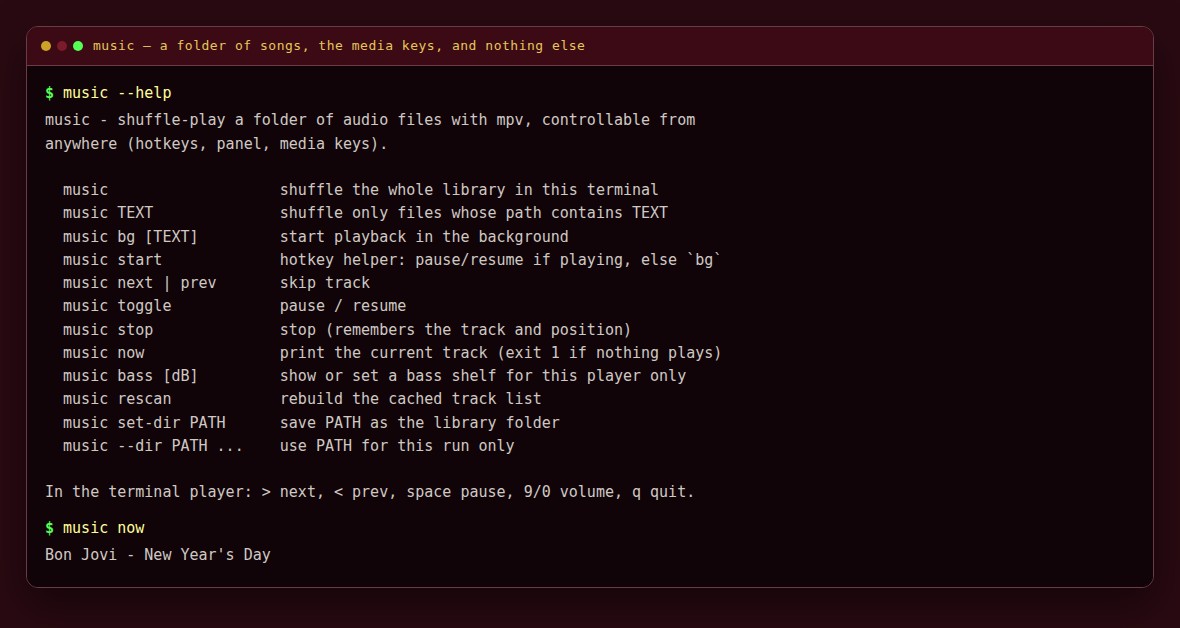
Everything else — the panel button, the media keys, the COSMIC shortcuts — drives these same commands.
Please test before relying on it
This is shared as-is, with no warranty. It works on my own computers, but your system, settings and software versions may differ, so please try it in a safe setting first. If something doesn't work, you can ask Claude (or another AI coding assistant) to look into it, and I'd appreciate hearing what you found and how you fixed it. You are also welcome to just let me know at support@veered.org, and I'll look into it.
Information for nerds: requirements and install
Debian / Ubuntu / Pop!_OS package names:
sudo apt install mpv python3
# optional
sudo apt install libnotify-bin                # notifications
sudo apt install python3-gi python3-pydbus    # so the Play/Pause keys reach it
sudo apt install playerctl                    # so other players still get the keys when this one is not running
Install
./install.sh                           # commands only, library = ~/Music
./install.sh --dir ~/Audio/Library     # choose the folder
./install.sh --shortcuts               # Super+M play/pause, Super+N next (below)
./install.sh --shortcuts fkeys         # F9 play/pause, F10 next instead
./install.sh --shortcuts --media-keys  # also take over the Play/Pause media keys
Everything goes to ~/.local/bin, ~/.local/share/cosmic-tools/music and ~/.config/cosmic-tools. Make sure ~/.local/bin is on your PATH.
Uninstall with ./uninstall.sh (it removes the shortcuts it added, after a backup). --purge also deletes settings and the resume position.
How you use it
music                   shuffle the whole library in this terminal
music TEXT              only files whose path contains TEXT (case-insensitive)
music bg [TEXT]         start in the background
music start             pause/resume if playing, otherwise start in the background
music next | prev       skip
music toggle            pause / resume
music stop              stop and remember the position
music now               print the current track (exit status 1 if nothing plays)
music bass [dB]         show or set the bass shelf (-12 .. 12)
music rescan            rebuild the track list cache
music set-dir PATH      save a new library folder
music --dir PATH ...    use another folder for one command
In the terminal player: > next, < previous, space pause, 9/0 volume, q quit.
Information for nerds: settings and environment
~/.config/cosmic-tools/music.conf (sourced by bash):
| Key | Default | Meaning |
|---|---|---|
MUSIC_ROOT | "$HOME/Music" | Library folder. music set-dir writes it, using $HOME for paths inside your home |
MUSIC_MPV_OPTS | empty | Extra mpv options, e.g. "--volume=70" |
MUSIC_NOTIFY | 1 | Desktop notifications |
Environment variables: MUSIC_ROOT overrides the file for one run, MUSIC_DRYRUN=1 lists matching files instead of playing, MUSIC_SOCKET changes the IPC socket (default $XDG_RUNTIME_DIR/mpv-music.sock).
Files used: track list cache in ~/.cache/cosmic-tools/music/, resume position in ~/.local/state/cosmic-tools/music-last, bass setting in ~/.config/cosmic-tools/music-bass.
COSMIC shortcuts
Two keys are all you need: one starts, pauses and resumes, the other skips. To stop completely (and remember the position), run music stop.
| Preset | Play / pause (starts if stopped) | Next track | Notes |
|---|---|---|---|
--shortcuts (or --shortcuts super) | Super+M | Super+N | Super+M replaces COSMIC's default Maximize shortcut; double-click a title bar to maximize instead. |
--shortcuts fkeys | F9 | F10 | COSMIC takes plain F-keys before applications see them, so F9/F10 no longer work inside apps. |
--play-key K --next-key K | your choice | your choice | e.g. --play-key Super+Ctrl+m --next-key Super+Ctrl+n |
With --media-keys it also makes Play and Pause run music-playpause, which controls music while it runs and otherwise forwards the key with playerctl play-pause. That replaces COSMIC's built-in handling of those two keys, so it is opt-in.
How the edit is done (tools/cosmic-shortcuts.py):
- Shortcuts live in
~/.config/cosmic/com.system76.CosmicSettings.Shortcuts/v1/custom. - The file is copied to
~/.config/cosmic-tools/backups/shortcuts-<timestamp>/before any change, then replaced atomically. COSMIC watches the file, and an in-place rewrite may not be picked up. - A key combination that is already bound to something else is left alone and reported. Nothing is overwritten.
- Each action has its own argument-free wrapper script, because a COSMIC shortcut runs a single program path.
You can also create the keyboard shortcuts yourself, in the custom shortcuts section of the Keyboard Shortcuts page in COSMIC Settings. Avoid plain Alt combinations: many applications treat them as menu accelerators.
To see or manage custom shortcuts:
python3 ~/.local/share/cosmic-tools/music/cosmic-shortcuts.py list
python3 ~/.local/share/cosmic-tools/music/cosmic-shortcuts.py add --bind "Super+p=$HOME/.local/bin/music-start" --dry-run
License
MIT, see the top-level LICENSE.
Information for nerds: conventions
- The installer is per-user: it writes to
~/.local/bin,~/.local/share/cosmic-toolsand~/.config/cosmic-tools, never to system directories, and needs nosudo. - Any step that edits a COSMIC config file makes a timestamped backup under
~/.config/cosmic-tools/backups/first. - Configuration files are plain text with comments.